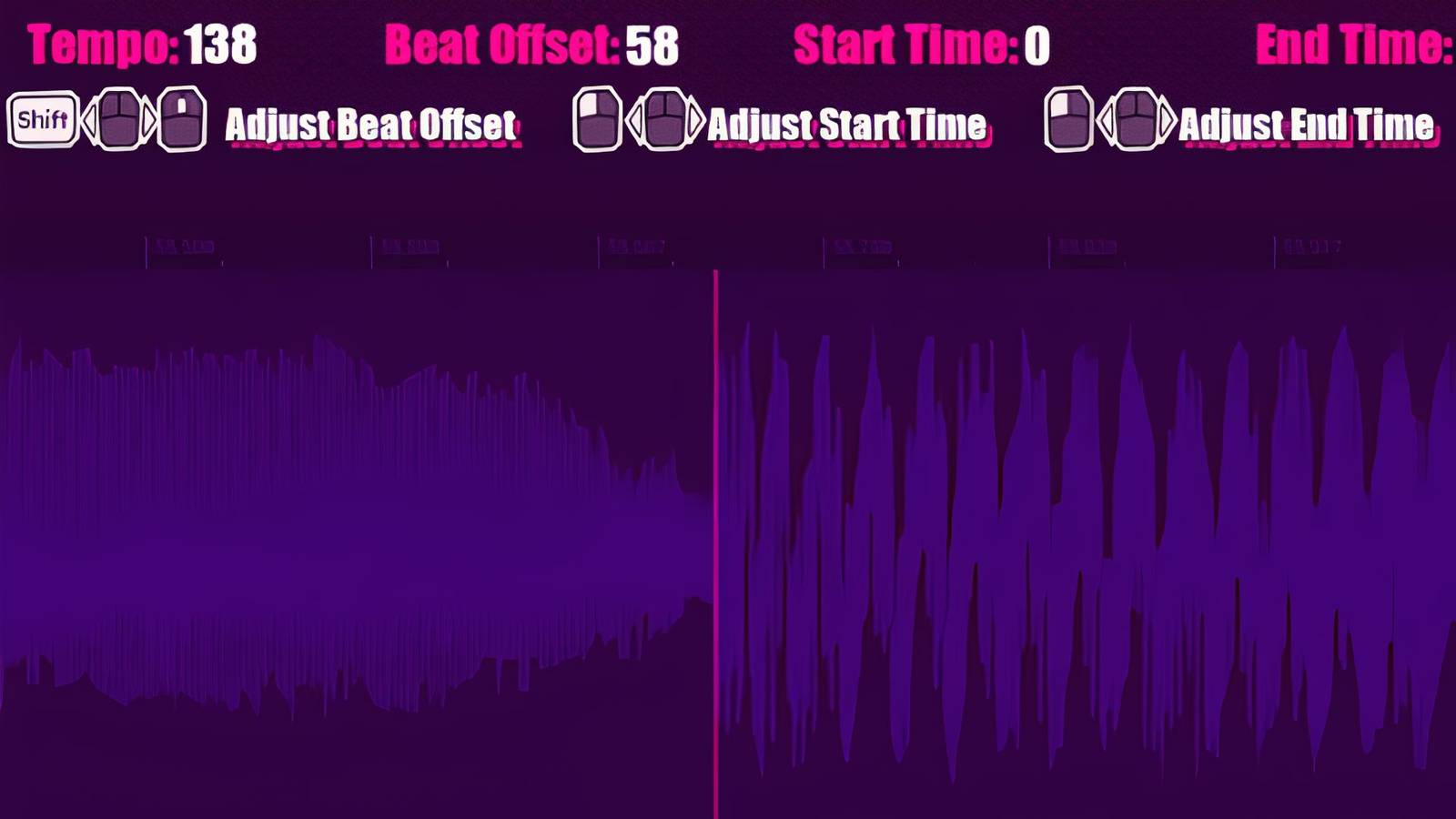
Importing your own music is one of the best parts Dead as Disco. However, most tracks require some editing in the advanced editor to sync properly. While BPM does matter, a common setting is Beat Offset Dead as Disco that actually solves the problem.
How to Fix Track Sync in Dead as Disco (TL;DR)
-
Use the BPM database to confirm the exact BPM of your song.
-
Find a strong beat in your song and zoom in on it to see its progression clearly.
-
Adjust the time offset until the beat map (pink line) lands directly on top of the given waveform.

Dead as Disco – Official Trailer Reveal
Don't miss the official reveal trailer for Dead as Disco, a beat 'em up game where combos sync to music.
Why are the tracks out of sync in Dead as Disco

There are two main reasons why an imported song can feel out of sync when played back: its BPM is set incorrectly or its Beat Offset is. For complete clarity, the BPM determines the tempo of the beats, while the offset of the beats determines exactly where those beats land.
If your song gradually becomes out of sync during playback, the problem is probably that the BPM is not set correctly, or that the BPM of the song changes over time. If your song is immediately out of sync, it means the beat shift needs to be adjusted.
Some delay is actually a desynchronization of the beat
When imported tracks don't sync properly, the game may seem to lag. The problem may not be actual input latency, but rather a BPM or Beat Offset issue that causes attacks to land slightly ahead or behind the beat.
BPM, Beat Offset and Start Time do different things
The advanced editor gives you control over the imported song's BPM, beat shift and start time. Here's an overview of these three settings and how they can cause sync issues:
BPM Controls the overall tempo

BPM determines the tempo of the beat, with fast songs having a high BPM and slow songs having a low BPM. If the BPM setting does not match the BPM of the track, the beats may start in sync, but gradually become out of sync during playback.
Beat Offset Aligns the song according to the beat grid

Beat Offset gives you control over exactly where the beats land. Even if you have the BPM set correctly, you may need to shift the beat by a few ms to align the in-game beat map, represented by the pink beat lines, with the beats of the song. If you're sure you've got the BPM right, but the beat is immediately out of sync, it's likely that Beat Offset is the culprit.
Start time only Changes where the track starts
The Start Time is simply adjusted when the song starts and does not affect the sync. If you don't want the song to start at the beginning, you can use Start Time to make this change, but don't expect it to solve any desync issues.
How to find out which setting is really bad
- If the song starts in sync but moves slowlyBPM is a likely problem.
- If the timing immediately feels wrong, Beat Offset is probably the cause.
- If you just want to skip the introductions, use Start Time instead of changing BPM or Beat Offset.
Start by finding the right BPM

The first thing you should do after importing a song is to highlight it in the Free Play playlist, press the Edit entry at the bottom of the screen and open the advanced editor. Now click on Beat Sound below the timeline. This setting gives you a click track that makes it much easier to identify when the beat lines are aligned with the song, and is very useful for confirming BPM and beat drift.
Use BPM database or in-game calibration
Now click on the number next to Tempo and set it to the correct BPM of the song. BPM databases like Tunebat are great for finding BPM tracks.
If you can't find your song in the database, select Calibrate below the timeline and click along with the beat to get a reasonable BPM. Then adjust the tempo to the nearest round number back in the advanced editor to really lock it down.
Dead as Disco imported tracks default to 120 BPM, so it's very common for tracks to be completely out of sync before editing.
Some songs have BPM changes

One complication is that some songs have BPM changes. You can solve this by using the Add BPM section setting that appears above the timeline.
If you don't see Add BPM Section, press the Toggle BPM Section Editing Mode entry that is displayed on the Timeline.
Now find the position in the song where the BPM changes, press the Add BPM Section input, and then set the changed BPM below the timeline. Be sure to set another Add BPM Section point when the song returns to its original tempo, if it does.
Beat Offset is usually the most important fix
Once you're sure you've got the BPM right, you can move on to adjusting the Beat Offset so that the beat lines line up exactly with the song.
Find a strong rhythm
Start by finding a point in your song with a very strong beat. The down beat after the quiet section is perfect because they make it very easy to see exactly when the beat hits the curve in the game.
If you can't freely move the yellow playback marker around the timeline to find a good beat, press the Toggle BPM section edit mode input that is displayed on the timeline.
Zoom in before editing anything
Now zoom in firmly on the rhythm you've identified to see a close-up view of the progression. The top of this waveform is where you want the closest pink line to land. Each pink line represents a beat on the rhythm map.
Change the time signature
To shift the bar lines, start with a large bar shift adjustment (something like 100) to send the pink lines to the right. If the pink line closest to your beat is now to the right of the beat, dial that number back a bit. Increase the number if the pink line is to the left of the time.
Once the pink line is close to the beat, start making small adjustments to the beat shift to move the beat line very slightly to the left and right. You end up adjusting the Beat Offset just a notch or two to get the pink line right at the top of the curve, and the Beat Sound click track helps you know when you've killed it.
Some tracks are harder to sync than others
While you should be able to make most tracks playable with enough work, some tracks are harder to deal with than others:
-
Tracks with complex or quiet drum patterns can make it difficult to identify the beat, even if the BPM and Beat Offset are technically correct.
-
Songs with variable BPMs require a lot of extra work because you'll need to add BPM sections to keep things in sync.


- Released
-
May 5, 2026
- Developers
-
Brain Jar Games
- Publishers
-
Brain Jar Games
- Number of players
-
For one player
- Steam Deck compatibility
-
Unknown


